


Screen Mirroring - TV Miracast
4.79.54K Reviews
App Specs
- Version
- 4.0.0.297
- Updated On
- License
- Free
- Downloads
- 10,000,000+
- Developer
- Sooltr LLC
- Categories
- Tools
- Platform
- Android, iOS
Screenshots
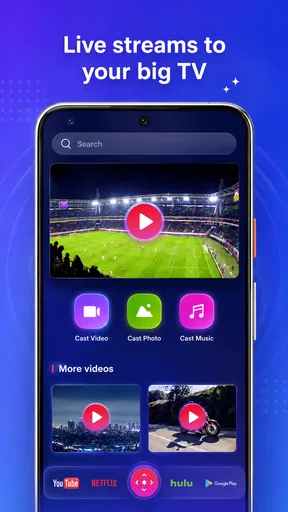
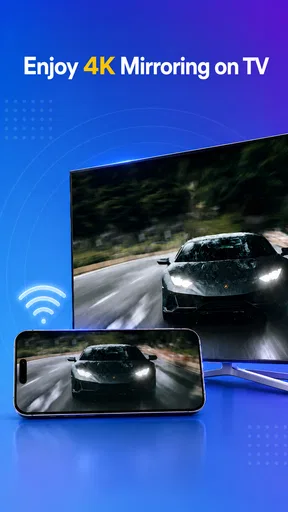
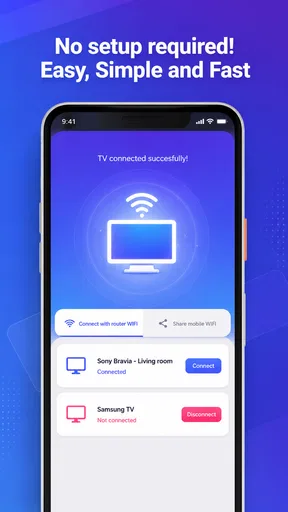
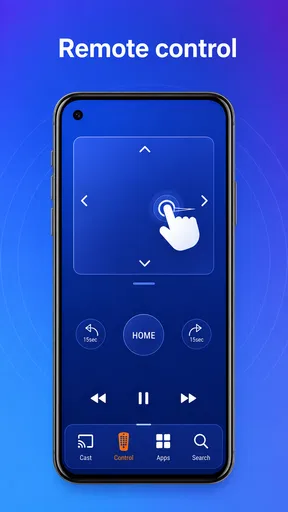
 Analysis by AppCompare
My first-week impression of Screen Mirroring - TV Miracast is that it solves a familiar problem with very little ceremony: I can show phone content to people in the room without passing my device around. That simple payoff is appealing, especially when a TV is already available and I want to share something quickly rather than set up a separate presentation or media system.
Where it fits into a normal day
A useful way to judge a mirroring app is to think beyond a planned movie night. Imagine a relative asks to see a set of holiday photos while everyone is at the kitchen table. Instead of handing over the phone, I can put the pictures on the TV and keep control of what appears next. The same approach can help when I need to show a map, a recipe, or a document to several people at once.
Those small, occasional moments are where this kind of tool makes the most sense. It is less compelling when I am alone and can comfortably use my phone, or when a TV’s own app already plays the same video directly. Mirroring is valuable because it bridges a gap between a phone and a shared screen, not because every phone activity becomes better on a television.
What I would check before relying on it
The main decision point is the TV connection. The app is built around Miracast-compatible equipment, so I would check the television’s screen-sharing options or the capabilities of any connected dongle before planning an event around it. Having both devices on the same Wi-Fi network is also part of the setup described here; if the home network is unreliable, the viewing experience can be unreliable too.
It helps to do a short test before guests arrive or a meeting begins. Open the app, connect to the TV, and try the exact kind of content you plan to show. That quick rehearsal can reveal whether the TV is discoverable and whether the picture and sound suit the room. It is a more useful check than assuming a successful connection will automatically make every activity comfortable to watch.
When a different route is better
For a film or series that has a dedicated app on the TV, I would usually start playback on the television itself. That avoids turning the phone into the source for the whole viewing session and leaves it free for messages or other tasks. A direct TV app can also be a more natural fit when the only goal is watching a particular service rather than showing the phone’s whole display.
For a formal presentation, a laptop connected to the screen may be a better choice if the material needs precise control or a polished layout. Mirroring a phone is handy for an informal demonstration, a quick document, or a photo album, but the phone’s notifications and small-screen controls can be distractions. I would prepare the display and keep the phone’s visible content in mind before sharing it with a room.
Worth Reading Before You Choose

EA SPORTS FC Mobile 26 Is a Bigger Football Game, but It Takes Time

Flipboard Shows What News Apps Must Do Beyond the Feed

Switching to Android Auto Means Rethinking Your Driving Routine

Google Calendar Makes a Crowded Week Easier to Manage

Ludo King Makes the Most of the Minutes Between Plans

Baby Panda World Brings Quick Play to Modern Phones, but Its Game Library Feels Busy
Early friction and realistic expectations
The promise of a quick connection should not be confused with guaranteed compatibility. TVs vary, and Miracast support is the practical hinge: if the set cannot receive a compatible wireless display signal, the app alone cannot remove that obstacle. A dongle may help, but it adds another device to buy and configure, which changes the convenience calculation.
There is also a difference between seeing a phone screen on a TV and having an experience designed for a TV. Text that looks readable in the hand may be awkward across a room, and fine controls can be difficult to manage while watching the larger display. I would use mirroring for content that benefits from being shared, rather than expecting every phone interface to become television-friendly.
Setting It Up
Getting started with Screen Mirroring - TV Miracast is as straightforward as it gets. First things first, make sure your TV supports Miracast or has a compatible dongle. Once you've got that sorted, download the app from the App Store or Google Play, install it, and you're good to go.
The app interface is clean and user-friendly. You won't need a PhD in technology to figure it out. Just open the app, and it will guide you through the connection process. You'll be prompted to connect your phone to the same Wi-Fi network as your TV, and voila, you're ready to mirror.
Features That Stand Out
One of the coolest features is its ability to stream in real-time. This means there's minimal lag between your phone's actions and what appears on the TV. It's perfect for gaming or watching videos seamlessly.
The app also supports multiple resolutions. So whether you're rocking an older device or the latest smartphone, you'll get a great viewing experience. The app automatically adjusts to the best possible quality your TV can handle.
"Mirror, mirror, on the wall, show me my phone screen in all its glory on the TV!"
Compatibility and Performance
Now, let's talk about compatibility. The app works across a wide range of devices, both Android and iOS. It's a versatile tool that doesn't discriminate against operating systems, making it a top choice for households with diverse tech ecosystems.
Performance-wise, I've been pretty impressed. The connection is stable as long as your Wi-Fi is reliable. I tested it with a few different TVs, and the app consistently delivered a smooth experience.
Why You Might Love It
If you're like me and love to share photos and videos with family during gatherings, this app is a game-changer. No more passing around the phone or crowding over a small screen. You can project those cherished memories for everyone to enjoy together.
For the gamers out there, this app lets you enjoy mobile games on a larger screen without the need for a console. It's a fun way to immerse yourself in your favorite games.
A Few Things to Consider
While the app is a fantastic tool, there are a couple of things to keep in mind. First, the quality of mirroring is heavily dependent on your Wi-Fi network. A weak or unstable connection can lead to some lag or disruption.
Additionally, not all TVs support Miracast, so you'll need to check compatibility before diving in. If your TV doesn’t support it, you may need an additional dongle, which is an extra purchase to consider.
Who is likely to keep using it?
As a tools app from Sooltr, this is most useful for people who regularly move content from a phone to a shared television: families showing photos, students demonstrating something informally, or anyone who wants to make a quick visual explanation easier to follow. It is free to install, rated for Everyone, and has a 4.4 average from around 326,000 ratings. Those figures suggest broad interest, but I would still base the decision on whether your own TV can connect and whether you have recurring reasons to mirror.
The practical habit is not “cast everything.” It is remembering the app when a larger display would genuinely help. If that happens only once in a while, keeping it installed may still be worthwhile because the task is specific and straightforward. If you never share phone content with other people, its core benefit may not earn a regular place in your routine.
Keeping the connection dependable
For a smoother session, I would avoid treating a first successful connection as a permanent guarantee. Check that the phone and TV are on the same Wi-Fi network before starting, and give yourself a moment to reconnect if the TV does not appear immediately. If several people use the television or its input changes often, confirm that it is set to its screen-mirroring receiver rather than assuming the app can find it from any screen.
A second useful habit is to choose the content before mirroring. Finding a particular photo or opening a video after the TV is already showing the phone can leave everyone watching the search process. Preparing the album or page first makes the shared moment feel intentional and reduces the chance of exposing unrelated personal content on a large display.
For gaming, I would test a title before settling in. A bigger picture can make casual play more fun, but a small delay matters much more in a fast game than it does while browsing photos. That is the key trade-off: mirroring can expand what everyone sees, while the phone and network remain part of the control path. It is a convenient option, not a substitute for a dedicated console or a wired setup where responsiveness is essential.
Value after the novelty fades
The app has reached version 4.0.0.235, and it has more than 10 million installs, but the lasting value is still personal rather than automatic. Screen mirroring is a task-based utility: it can be very handy when needed and easy to forget between those moments. I see that as a reasonable role for a free tool, especially for households that share photos or make informal demonstrations often.
There are also in-app purchases, with items priced from $3.99 to $49.99. I would begin with the free experience and decide whether it already covers my occasional mirroring needs before spending anything. The existence of optional purchases does not by itself make the app a better fit; what matters is whether the connection works with the equipment I own and whether I use it enough to justify paying for anything.
Long-term verdict
Overall, the app makes the most sense as a practical bridge between a phone and a compatible TV. Its strongest moments are ordinary ones: showing a photo album to family, letting a few people follow a visual explanation, or trying a casual mobile game on a larger screen. Its weaknesses are equally concrete: Wi-Fi quality affects performance, compatible receiving equipment is essential, and full-screen phone mirroring is not always the best way to watch TV content.
I would recommend giving it a try if you already have a Miracast-ready setup and can name a few situations where others would benefit from seeing your phone. I would skip it, or choose a TV’s own app or a laptop connection instead, if your main aim is private streaming, precise presentation control, or latency-sensitive play. Once the novelty wears off, its place depends on a simple question: does sharing your phone screen solve a recurring problem in your home? If yes, this is an approachable tool to keep around; if not, it may remain an occasional convenience rather than a daily essential.
Pros
- Easy setup across devices
- Supports multiple file formats
- Stable connection with minimal lag
- User-friendly interface
- Compatible with most smart TVs
Cons
- Requires strong Wi-Fi connection
- Ads can be intrusive
- Limited free features
- Not all devices supported
- Occasional connectivity issues
FAQs for Screen Mirroring - TV Miracast
What devices are compatible with Screen Mirroring - TV Miracast?
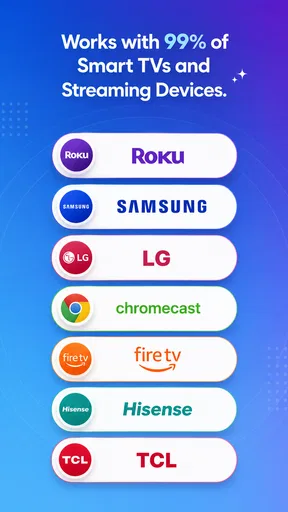
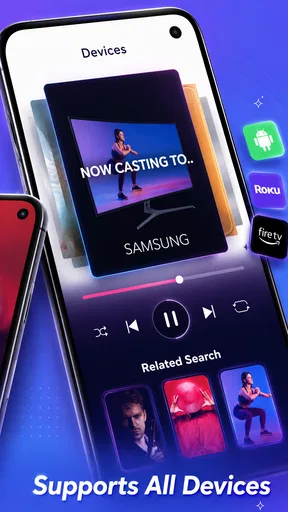
Screen Mirroring - TV Miracast is compatible with most Android devices running version 4.2 and above. It also supports a wide range of smart TVs and streaming devices like Chromecast, Roku, and Amazon Fire Stick. Before downloading, ensure your device and TV are on the same Wi-Fi network for seamless mirroring.
How do I set up Screen Mirroring - TV Miracast?
To set up Screen Mirroring - TV Miracast, first ensure both your phone and TV are connected to the same Wi-Fi network. Open the app, select your TV from the list of available devices, and follow the on-screen instructions. The process is straightforward, but ensure your devices are compatible and updated.
Is there any lag or delay during screen mirroring?
While Screen Mirroring - TV Miracast aims to provide a seamless experience, some users may experience slight lag or delay. This can be due to network strength, device compatibility, or high-resolution content. For optimal performance, ensure a strong Wi-Fi connection and close any unnecessary applications running in the background.
Are there any privacy concerns with using Screen Mirroring - TV Miracast?
Screen Mirroring - TV Miracast prioritizes user privacy and does not store or share your mirrored content. However, as with any screen mirroring app, be cautious about mirroring sensitive information, especially when using public networks. Ensure your network is secure to prevent unauthorized access.
Is Screen Mirroring - TV Miracast free to use?
Screen Mirroring - TV Miracast offers a free version with basic features, but you may encounter ads. For an ad-free experience and additional features like HD streaming, you can upgrade to the premium version through in-app purchases. Evaluate your needs to decide which version suits you best.


